

Documentation Index
Fetch the complete documentation index at: https://mezmo-9a59581a-mintlify-926f893d.mintlify.app/llms.txt
Use this file to discover all available pages before exploring further.
This feature is only available for customers on an Enterprise plan, and is restricted to Owner and Admin user roles. Please contact your Customer Support Manager or support@mezmo.com for more information.
Step 1: Get Your Mezmo Single Sign On URL
- In your Mezmo app go to Settings > Organization > Access Management.
- Go to SAML Configuration and copy the URL under URL for the Single Sign On Service to Consume.
- Keep this URL available since it will be used in Step 2: Configure OneLogin.
Step 2: Configure OneLogin
- Log in to your instance of OneLogin.
- Go to Applications > Applications. Then click Add App.
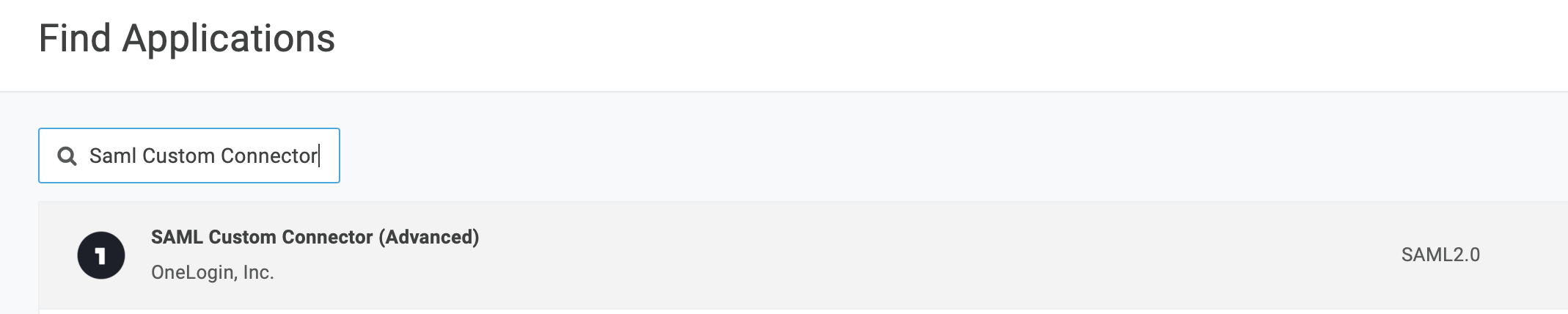
- In the search box, search for
SAML Custom Connector. SelectSAML Customer Connector (Advanced). - Give the connector a name and then Save.
- Select configuration from the menu in OneLogin.
- Enter the Mezmo Single Sign On Service to Consume URL from Step 1: Get Your Mezmo Single Sign On URL, into
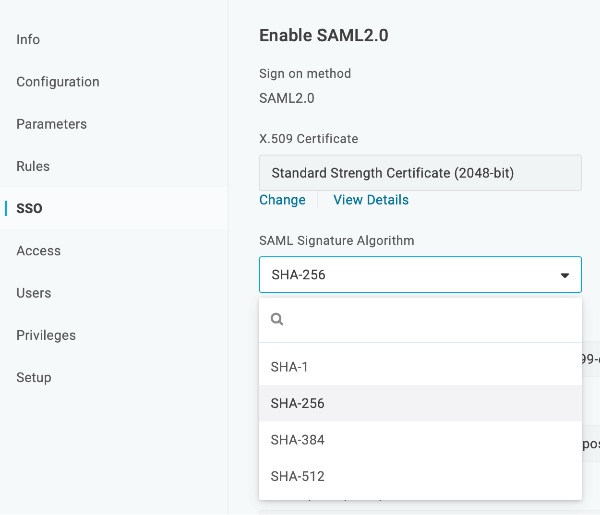
ACS (Consumer) URL ValidatorandACS (Consumer) URL. - Select SSO from the left menu.
- Make sure the SAML Signature Algorithm is SHA-256 in the dropdown.
Step 3: SAML Configuration
- In OneLogin, go to the SSO tab.
- In the More Actions dropdown, select SAML Metadata. An XML file will download.
- In your Mezmo app, go to Settings > Organization > Security.
- Toggle SAML Sign-in to on.
- In SAML Configuration upload the XML file downloaded.
- Save and your OneLogin SSO is ready to go.